

 SmartHub
 Automation
 Appointment Scheduler
 Lead Management
 Dashboard & Reports
 Task Management
 Communications Hub
 Managed chat
 Voice Receptionist
 Appointment scheduling
 Retainer signing
 Home services
 Lawyers and firms
 Medical services
 College admissions
 Real estate agents
 Marketing agencies
 About
About Partner program
 Estimate Your ROI
 Case Studies
 Blog
Blog FAQs
FAQs Login
Login
Connect Your Email Domain to Blazeo SmartHub
Elevate your business communication by connecting your custom email domain. Send professional emails from your own domain and boost deliverability, trust, and brand recognition.
Whether you use GoDaddy, Hostinger, Namecheap, or any other domain provider, our simple configuration process works with all major platforms. Get set up in minutes with our step-by-step guide.
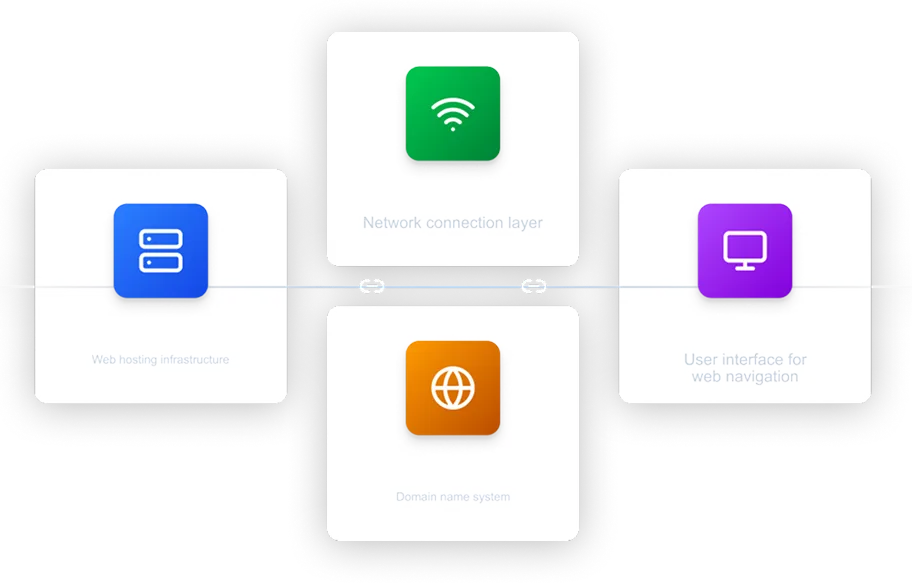
Why Connect Your Email Domain?
Connecting your custom email domain unlocks powerful features that transform your business communication

Professional Email Communication
Send emails from your own domain (e.g., team@yourbusiness.com) instead of generic email addresses, building trust and credibility with your customers.

Enhanced Email Deliverability
Proper domain configuration with SPF, DKIM, and DMARC ensures your emails reach the inbox, not spam folders, improving email delivery rates by up to 98%.

Brand Recognition
Strengthen your brand identity with custom email addresses that match your business domain, creating a consistent professional image across all communications.

Improved Email Performance
Track email opens, clicks, and engagement with better accuracy. Custom domains provide detailed analytics and insights into your email campaigns.
How It Works
Setting up your email domain is straightforward. Follow these three simple steps to get started

Configure DNS Records
Add specific DNS records (TXT, CNAME, MX) to your domain provider. These records authenticate your domain and enable email functionality.

Verify Domain Ownership
Blazeo SmartHub automatically checks your DNS records to confirm you own the domain and that it's properly configured for email delivery.

Start Sending Emails
Once verified, you can immediately start sending and receiving emails from your custom domain through Blazeo SmartHub with full tracking and analytics.
What DNS Records Do
- SPF (TXT) - Prevents email spoofing by specifying which servers can send emails on behalf of your domain
- DKIM (TXT) - Adds a digital signature to your emails to verify they haven't been tampered with
- CNAME - Routes bounce notifications and tracks email engagement
- MX - Directs incoming emails to the correct mail server
Add & Verify Email Domain
Follow the steps below to configure your DNS settings and verify your domain
Configuration Steps
| Type | Priority | Host/Hostname | Values | Status | Actions |
|---|---|---|---|---|---|
| TXT | N/A | blazeo.com |
v=spf1 a mx include:spf.mtasv.net ~all
|
Verified | Edit |
| TXT | N/A | 20251124095103pm._domainkey.blazeo.com |
k=rsa; p=MIGfMA0GCSqGSIb3DQEBAQUAA4GNADCBiQKBgQCK/DXCKax1R
|
Verified | Edit |
| CNAME | N/A | pm-bounces.blazeo.com |
pm.mtasv.net
|
Verified | Edit |
| MX | N/A | @ |
inbound.postmarkapp.com
|
Unverified | Edit |
DNS changes can take up to 1-2 hours to propagate globally. If verification fails, please wait a few hours and try again.